Homebrew · Nintendo GameCube
FML Launcher
A 3D game shelf for PicoLoader + Swiss + SD2SP2
FML Launcher replaces the file list you normally see on a modded GameCube with a shelf of game cases. GameCube discs, Game Boy games and homebrew apps all sit side by side with their real box art, and A starts any of them. It's free and open source, and the code is on GitHub.
Install in three steps
You need a GameCube with a PicoLoader chip and an SD2SP2 (or SD Gecko) adapter.
Download the latest release
From the releases page, get
cubelaunch.uf2and thefmlfolder.Flash the Pico once
Hold BOOTSEL on the Pico while plugging it into your computer, then copy
cubelaunch.uf2onto the drive that appears. It restarts by itself when it's done.Set up the SD card and turn on
Copy the
fmlfolder and a Swiss.dolto the card, add your games anywhere, and turn on the GameCube.
01 · A look around
Screenshots
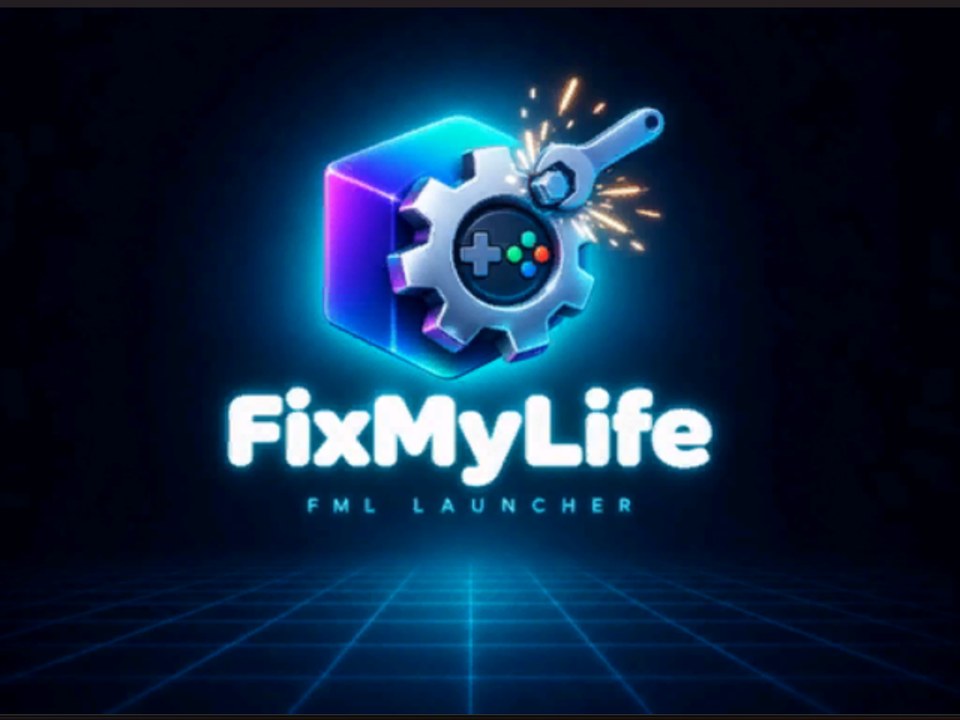
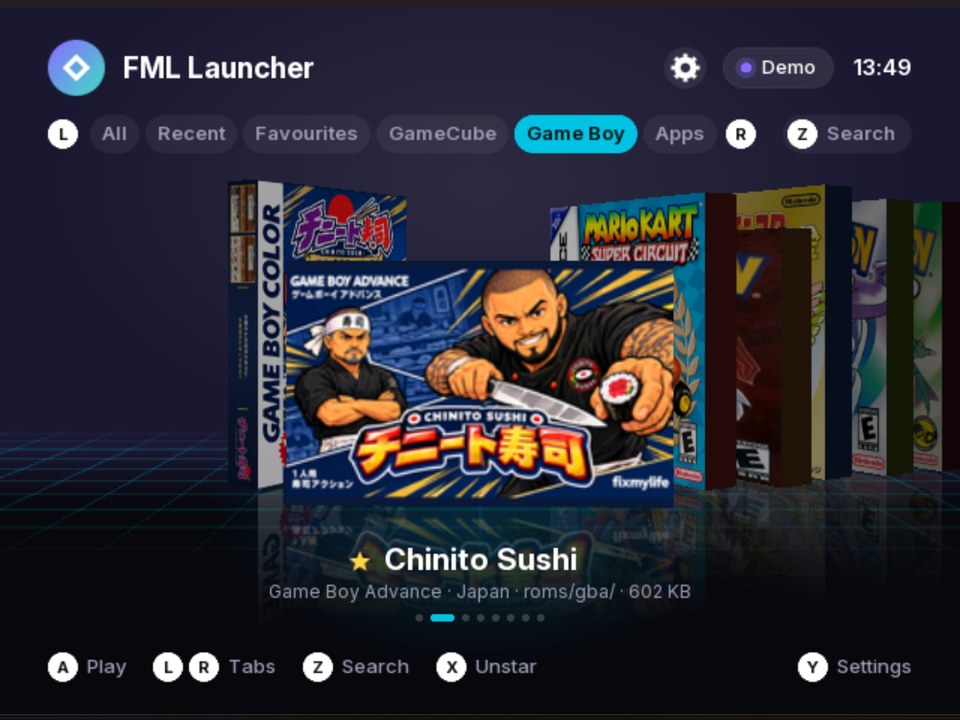
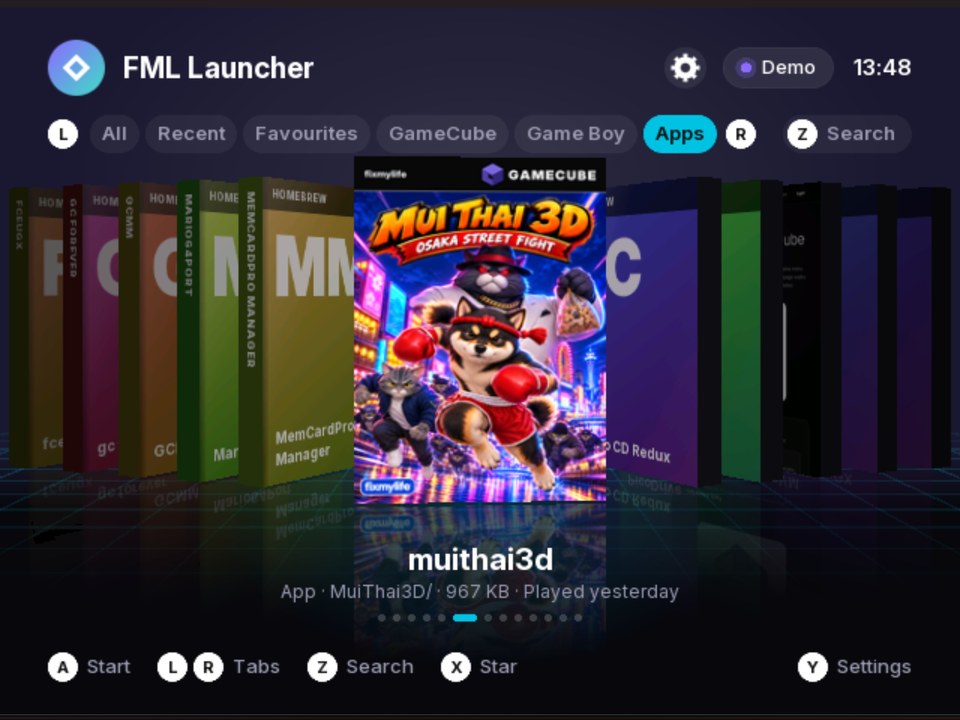
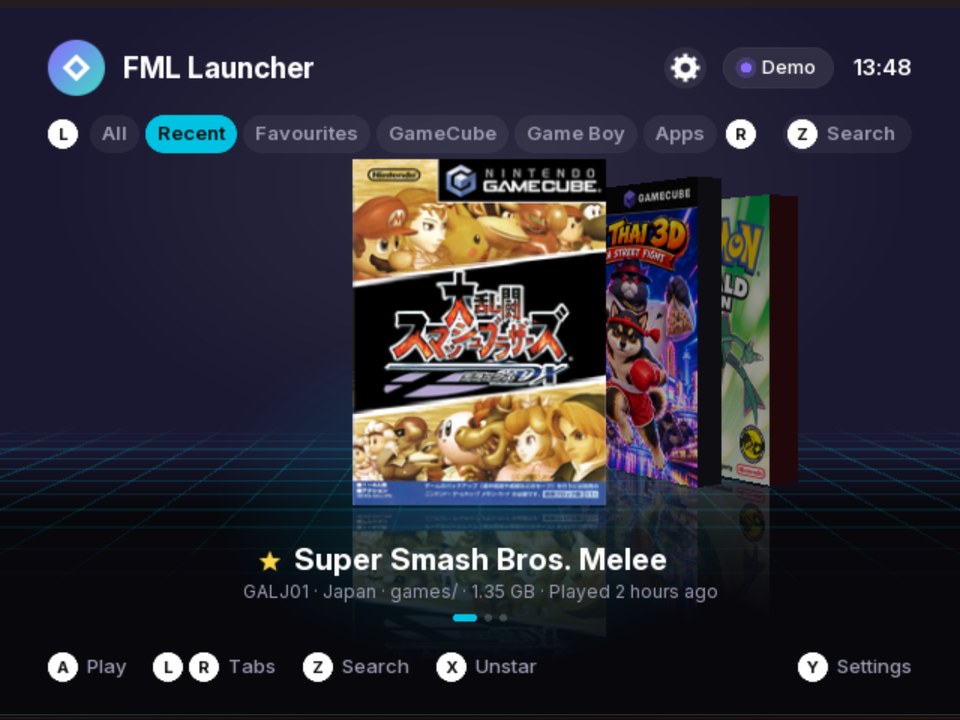
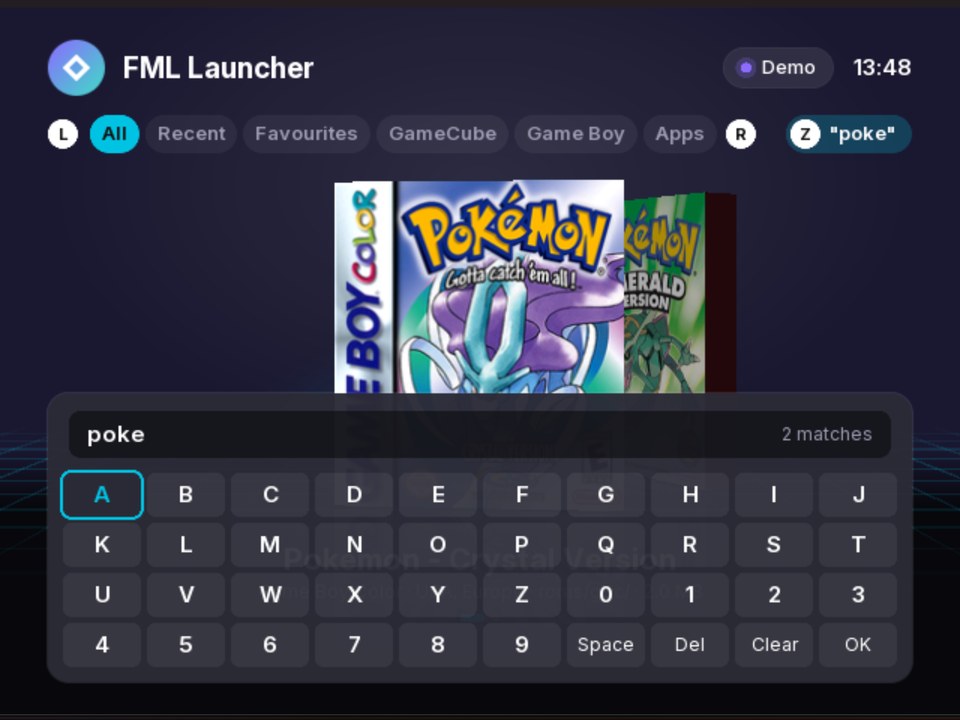
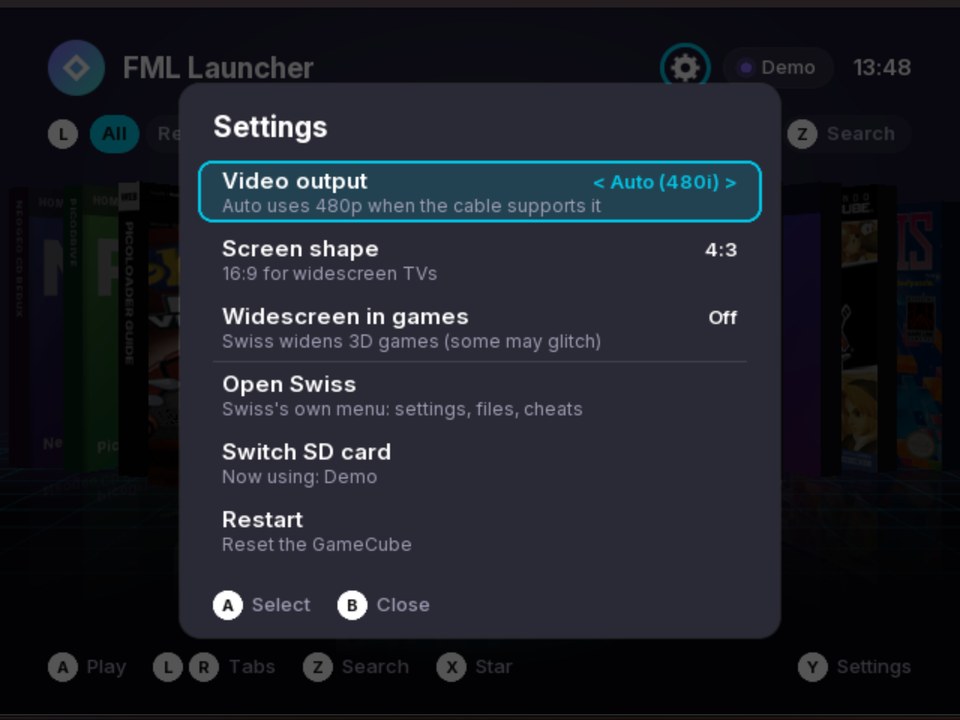
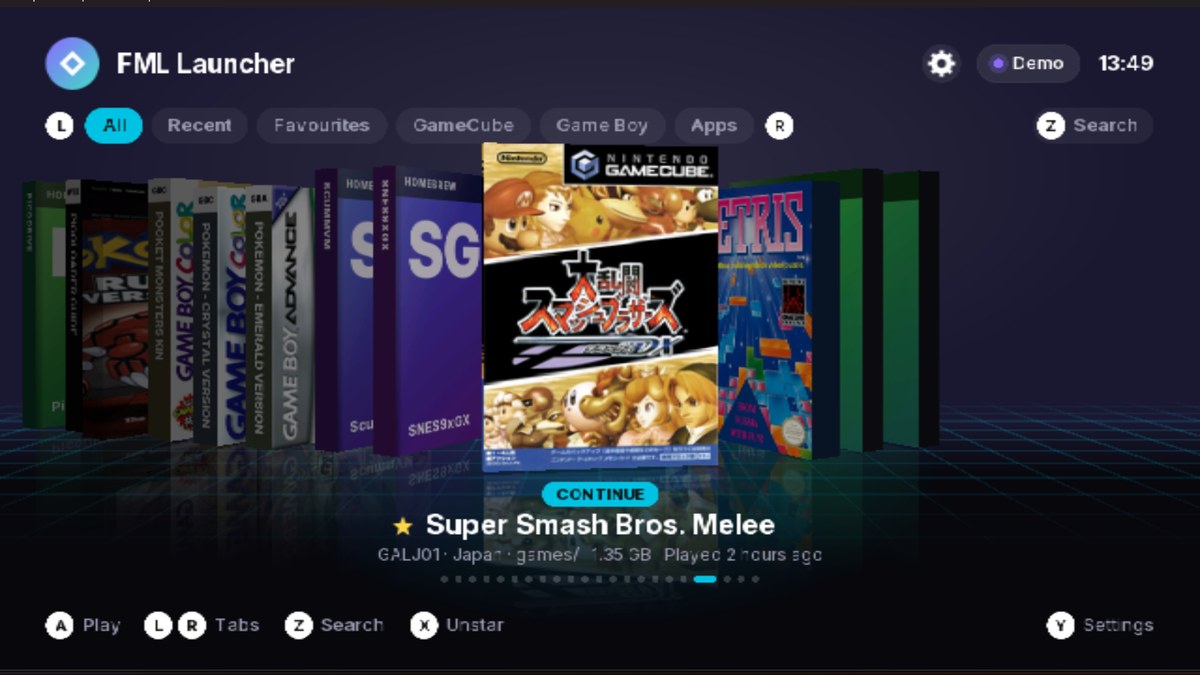
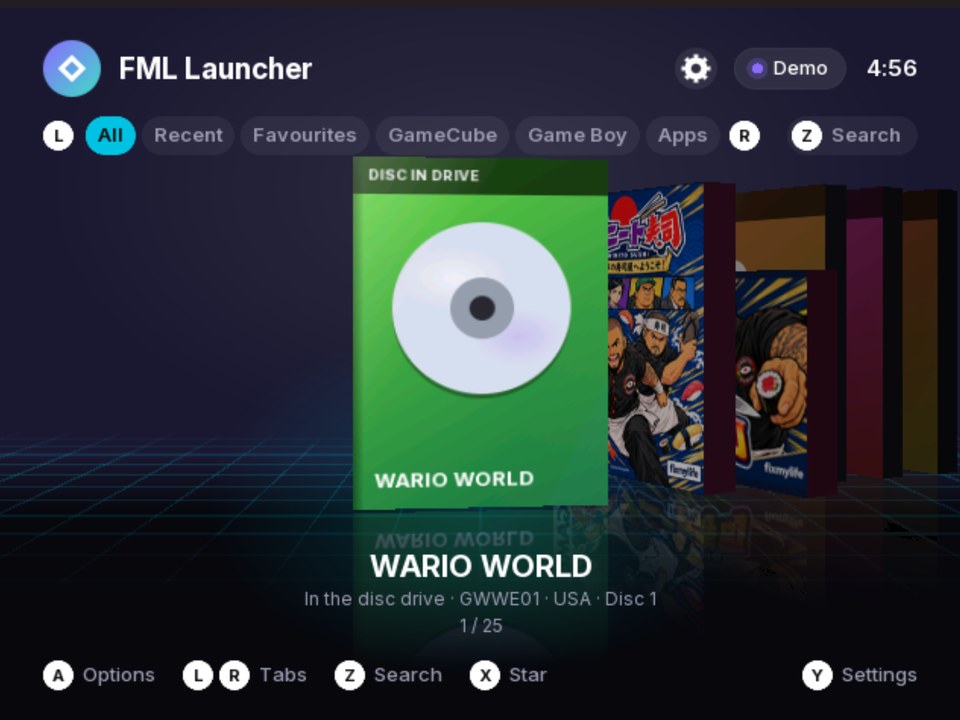
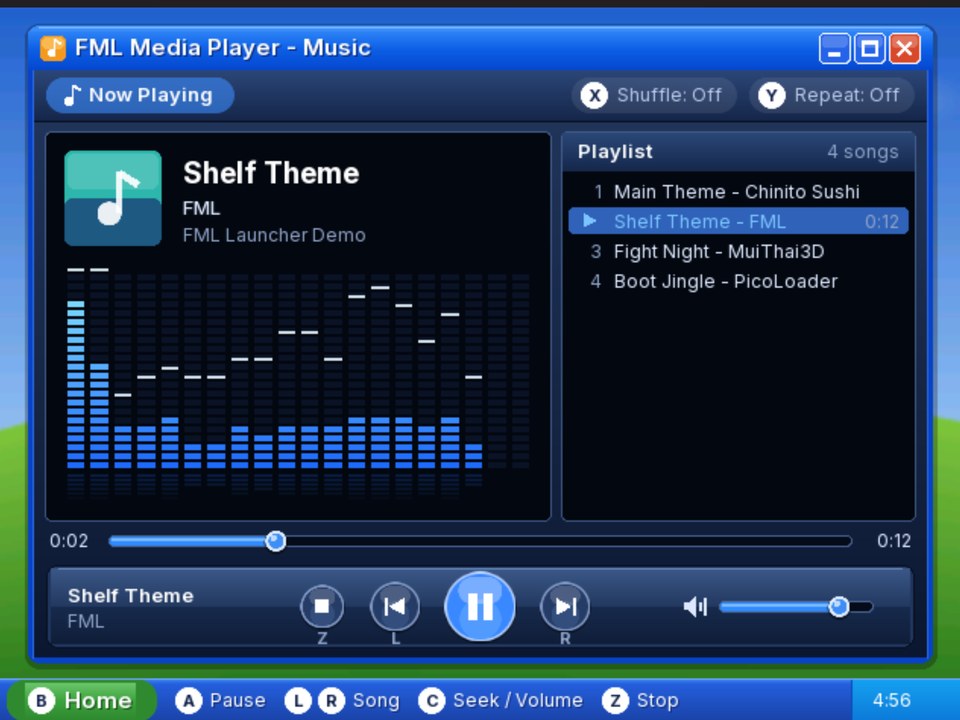
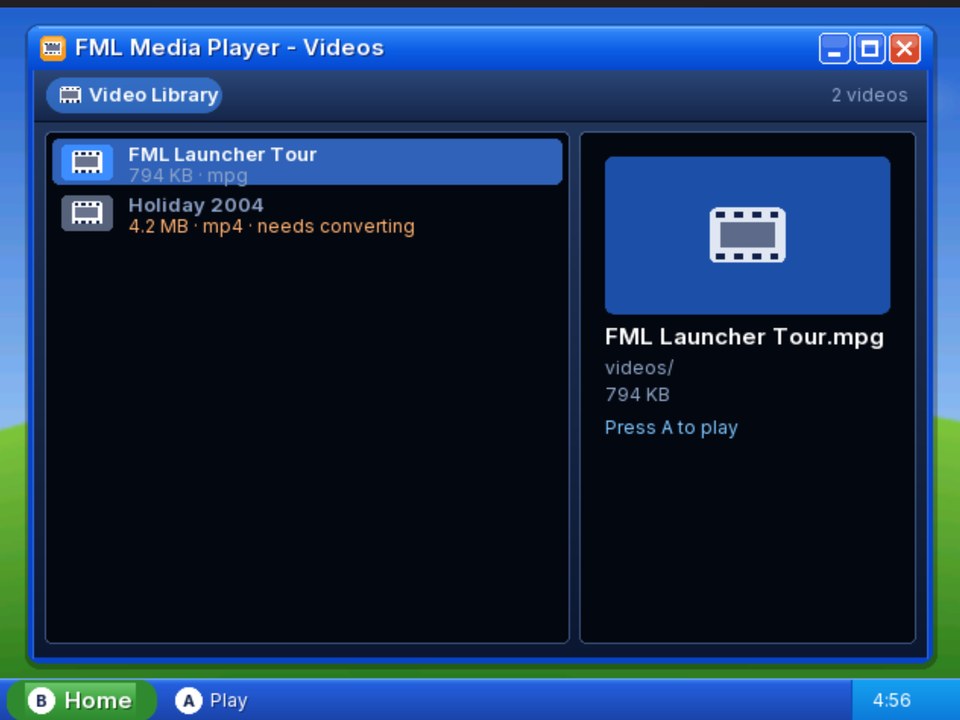
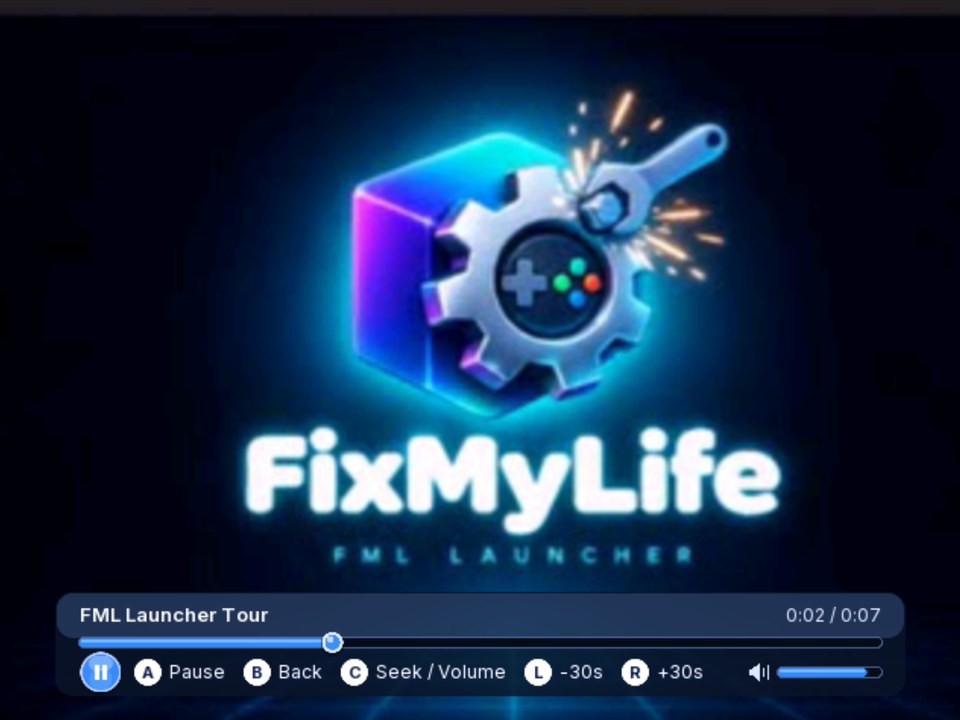
Screenshots are from the Dolphin emulator running the demo build. On a real console it looks the same.
02 · Under the hood
How it works
FML Launcher is a GameCube program written in C with libogc, drawn in 3D on the GameCube's own graphics chip. It's stored on the PicoLoader chip, so it's the first thing that starts when you turn the console on.
- Power onThe PicoLoader chip starts the launcher stored in it
- Check for an updateIf
fml/launcher.dolon the card is a different build, that copy runs instead - Boot video
fml/splash.fmvstreams from the card - Read the cardEvery game in any folder; known files come from a saved list
- The shelfPick a game and press A
Starting a game
| What you pick | What happens |
|---|---|
GameCube disc image (.iso, .gcm) | Swiss is started in the background and told which game to load, so its menus never appear. The video mode you chose is passed along too. |
Game Boy ROM (.gb, .gbc, .gba) | Visual Boy Advance GX is started with the ROM, straight into the game. |
Homebrew (.dol) | Loaded into memory and started directly. |
Saved web page (.fpg) | Opens in the built-in page viewer, like the PicoLoader guide. |
| The disc in the drive | A menu: Play disc (through Swiss, with your video settings), Copy to SD card, or Play the SD card copy once it's there. |
| Music Player | Plays the .mp3 files on the card. Music keeps playing on the shelf. |
| Movie Player | Plays MPEG-1 videos (.mpg) with sound. |
Box art
Each case has a front, spine and back. A small PC tool, tools/covers.py, downloads the art (GameCube scans from GameTDB, Game Boy boxes from libretro-thumbnails) and converts it into the GameCube's own texture format, so the console can show it without decoding anything. Games without art get a generated case in a colour picked from their name.
Fast and remembered
The game list is saved to fml/library.cache, so only new files are read at startup. What you played, how often, and your favourites are saved to fml/history.txt. Region is read from each game: the 4th letter of a GameCube game ID, or the ROM's name or header for Game Boy.
The boot video
The GameCube can't decode normal video files quickly, so each frame is stored already compressed in the graphics chip's own format (512×384, 24 fps). The console streams frames from the SD card and shows them as they arrive, and drops a frame rather than slowing down if the card falls behind.
03 · What it does
Features
Cover flow
3D shelf
Real box art with front, spine and back, reflections and smooth sliding. Game Boy games come in Game Boy boxes.
One list
Every kind of game
GameCube discs, Game Boy, Game Boy Color, Game Boy Advance and homebrew, in any folder on the card.
History
Continue & Favourites
Opens on your last game. X stars a game. Recent and Favourites tabs, play counts and "played 2 days ago".
Video
480p & 16:9
Progressive output on a component cable or Digital AV HDMI adapter, and a widescreen layout for 16:9 TVs.
No reflashing
Updates from the SD card
Copy a new launcher.dol to fml/ and it runs next time. The Pico only needs flashing once.
Find things
Tabs & search
All, Recent, Favourites, GameCube, Game Boy and Apps tabs, plus a search that also matches regions like "Japan".
New in v1.1
Disc drive
Play an original disc, or copy it to the SD card as a 1.36 GB backup with a CRC32 to check against Redump.
New in v1.1
Music Player
MP3s from anywhere on the card in a Windows XP style player: playlist, song tags, frequency bars, shuffle and repeat.
New in v1.1
Movie Player
MPEG-1 videos with sound. tools/make_movie.py converts anything else on your PC.
04 · Set it up
Install it on your GameCube
Already have PicoLoader and Swiss?
FML Launcher takes the place of the starter on the chip, and still uses Swiss in the background for GameCube games. If your console isn't modded yet, start with the PicoLoader guide.
Download the release
Get
cubelaunch.uf2and thefmlfolder from the latest release.Flash the Pico
Take the Pico out (or connect its USB port), hold BOOTSEL while plugging it in, and copy
cubelaunch.uf2to theRPI-RP2drive. The drive disappears when it's done.Prepare the SD card
Copy the
fmlfolder to the root of the card, plus a Swiss.dol(any name starting withswiss). For Game Boy games, add Visual Boy Advance GX.Add your games and covers
Put games in any folders you like. Then run
python tools/covers.py fetch E:\on your PC (with your card's drive letter) to download box art for everything on it.
05 · Buttons
Controls
| Button | What it does |
|---|---|
| Stick / D-pad left and right | Slide through games |
| A | Start the game |
| L / R | Switch tab |
| Z | Search |
| X | Star or unstar a game |
| Y | Settings: video mode, screen shape, open Swiss, switch SD card, restart |
| START | Restart |
| Hold R while turning on | Use the copy on the chip instead of fml/launcher.dol |
| Hold B while turning on | Force 480i, if 480p shows no picture |
In the Music Player
| Button | What it does |
|---|---|
| A | Play the chosen song, or pause |
| L / R | Previous / next song |
| C-stick left and right | Seek |
| C-stick up and down | Volume |
| X / Y | Shuffle / repeat |
| Z | Stop |
| B | Back to the shelf (the music keeps playing) |
In the Movie Player
| Button | What it does |
|---|---|
| A | Play or pause |
| L / R | Back or forward 30 seconds |
| C-stick (or stick) | Seek left and right, volume up and down |
| B | Back to the list, then to the shelf |
06 · Media
Music and movies
Copy .mp3 files anywhere on the SD card and they show up in the Music Player (Apps tab). Songs are named from their tags, or from file names like Artist - Song.mp3.
The GameCube is too slow for modern video formats, so the Movie Player plays MPEG-1 (.mpg), the format of Video CDs. Convert your videos on a PC with ffmpeg installed:
python tools/make_movie.py "Holiday.mp4"Smaller plays smoother
The default is 320 pixels wide at 24 fps. Try --width 400 for a sharper picture if it still plays smoothly on your console.
07 · New versions
Updating
After the first flash, updates are just a file copy. Download launcher.dol from the newest release and copy it over fml/launcher.dol on the SD card. When the console starts, the launcher on the chip sees that the card has a different build and runs it instead.
If an update won't start
Hold R while turning the GameCube on. That skips the card's copy and uses the one on the chip, so you can replace the file.
08 · From source
Build it yourself
Install devkitPro with the GameCube packages, clone the repository, and run make in a devkitPro shell. That gives you cubelaunch.dol.
git clone https://github.com/fixmylifedesigns/fml-launcher.gitpython tools/make_uf2.py cubelaunch.dol cubelaunch.uf2Dolphin can't emulate SD adapters, so make DEMO=1 builds a version with a fake card built in, for testing on a PC.
09 · Downloads
Links
- FML Launchergithub.com/fixmylifedesigns/fml-launcherSource code, issues and README
- FML Launcher releasesgithub.com/fixmylifedesigns/fml-launcher/releases/latestcubelaunch.uf2, launcher.dol and the fml folder
- GameCube PicoLoader guide/mods/gamecube/picoloaderSetting up PicoLoader, Swiss and the SD card
- Swiss releasesgithub.com/emukidid/swiss-gc/releases/latestFML Launcher uses Swiss to start GameCube games
- Visual Boy Advance GXgithub.com/dborth/vbagxPlays Game Boy games
- devkitProdevkitpro.org/wiki/Getting_StartedToolchain for building from source