Mod guide · Nintendo DS Lite
Your DS Lite R4 card
R4 card + TWiLight Menu++ + nds-bootstrap + GBARunner2
The R4 is a game card that holds a microSD card instead of one game. Put it in the DS, turn it on, and a menu with cover art opens with all your games sorted into folders. This page explains how it works and how to set one up. No games are provided here.
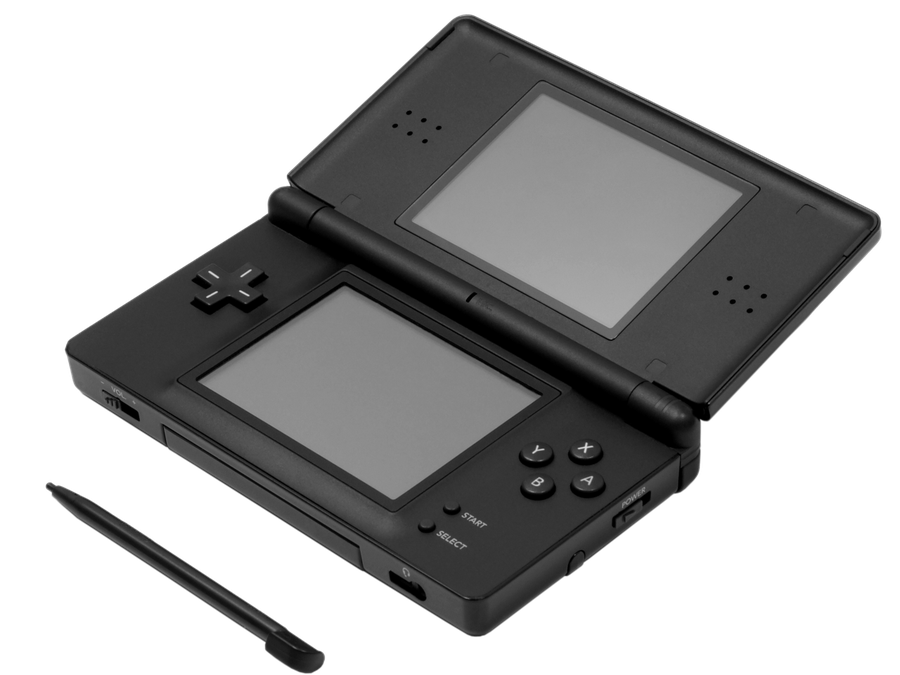
Just want to play?
If the card is already set up, this is all you need.
Put the R4 card in the top slot and turn on the DS
The label faces the back of the DS. Tap the Nintendo DS card on the start screen if it doesn't open by itself.
Pick a folder
TWiLight Menu++ opens with the cover art. Use the D-Pad to move, A to open a folder and B to go back.
Press A on a game to play
To quit a game, turn the DS off. Your progress is kept in the game's save, so save in the game first.
01 · The parts
What makes it work
A few free programs work together on the card. You don't need to understand them to play, but it helps when something goes wrong.
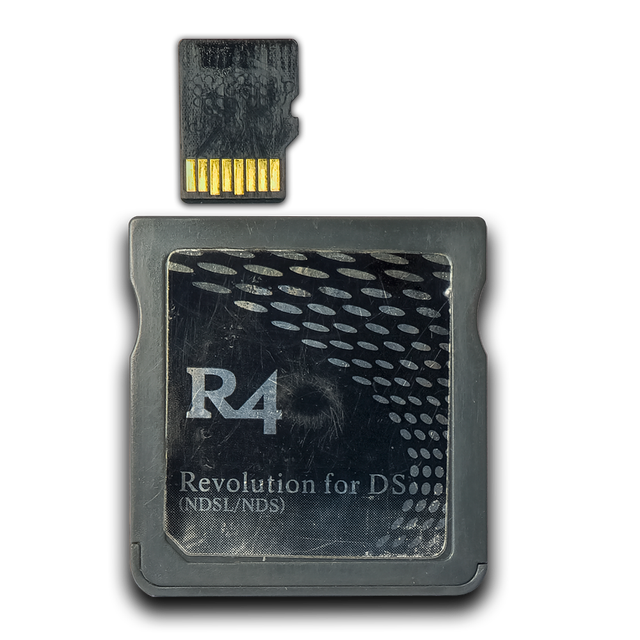
The cartridge
R4 card
Looks like a DS game but has a microSD slot. This one is an Ace3DS+ / R4i-style clone that says “R4 Revolution for DS”. Many R4 cards look the same but need different files, which matters when you set up a new card.
Game menu
TWiLight Menu++
The menu you see after turning on. It shows cover art, lets you browse folders and starts DS, Game Boy and Game Boy Advance games.
Official projectRuns DS games
nds-bootstrap
Comes with TWiLight Menu++. It loads DS games from the card and keeps each game's save file next to the game.
Official projectRuns Game Boy Advance games
GBARunner2
Also comes with TWiLight Menu++. It plays .gba games on the DS screen. It needs a GBA BIOS file and folder names in English letters.
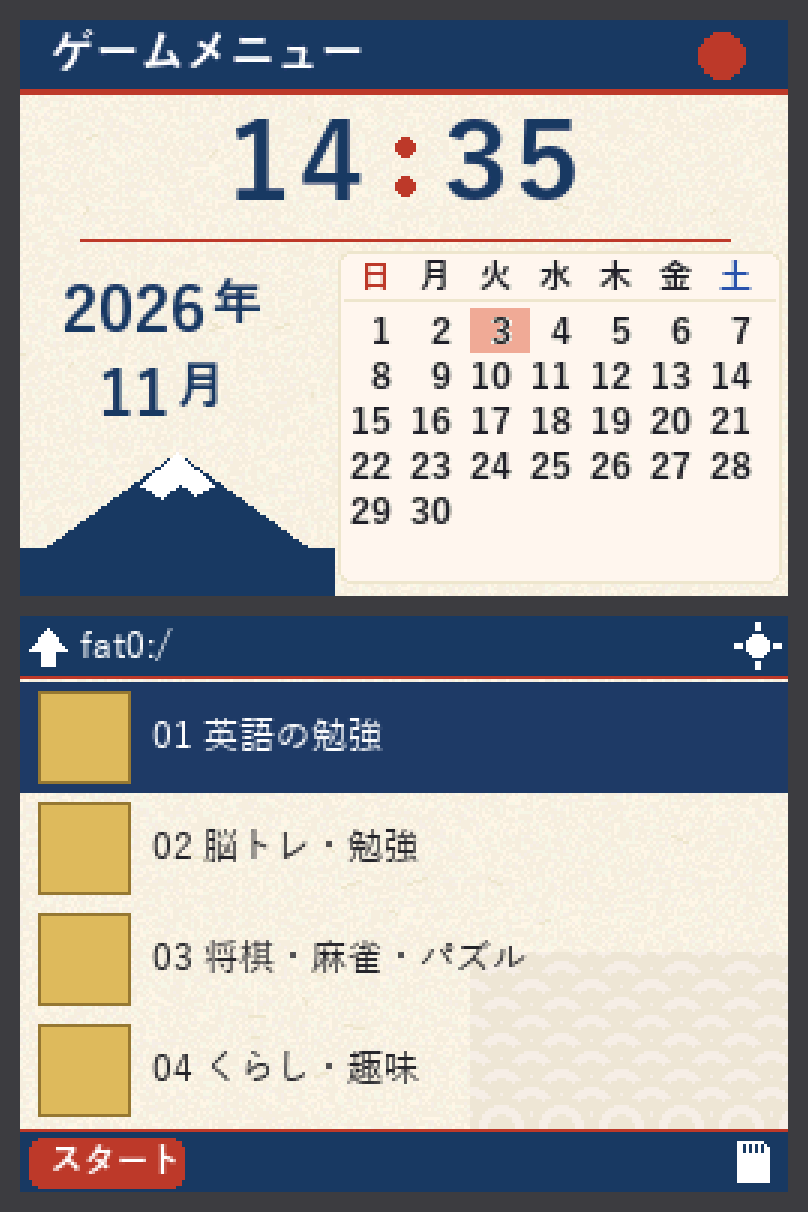
Our design
Washi theme
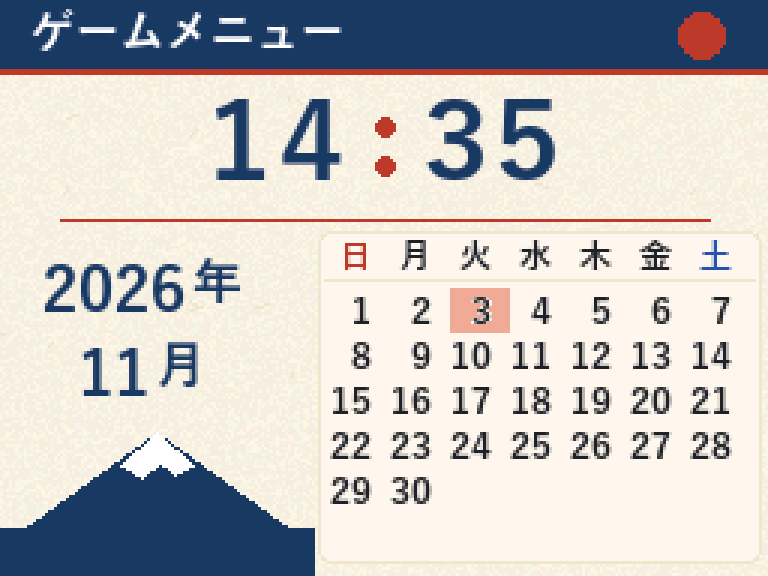
A calm Japanese paper-style theme made for this card's original Wood R4 menu, with a big clock and calendar. See The designs.
02 · Boot process
What happens when you press Power
- Power on
- R4 cardreads
_DSMENU.DAT - Autoboot filestarts
BOOT.NDS - TWiLight Menu++folders + covers
- Your gamesDS, GB & GBA
The card itself always starts a file called _DSMENU.DAT. Normally that is the card's own menu. Here it's replaced with a small autoboot file from TWiLight Menu++, so the DS goes straight into TWiLight Menu++ instead.
| Game type | What plays it | File ending |
|---|---|---|
| Nintendo DS | nds-bootstrap | .nds |
| Game Boy Advance | GBARunner2 | .gba |
| Game Boy / Color | Built-in emulator (Virtual Console add-on) | .gb .gbc |
A DS Lite also has a Game Boy Advance slot at the bottom. This setup ignores it on purpose: GBA games on the microSD card open in GBARunner2 automatically.
03 · Storage
What's on the microSD card
Turn the DS off first
Never take the R4 card or the microSD card out while the DS is on.
Turn off the DS and pull the R4 card out of the top slot.
Push the microSD card gently into the R4 card. It pops out a little; pull it out.
Put it into your computer with a microSD card reader.
The folders are numbered so they always show in the same order, and the names are in Japanese with big, clear categories. That makes it easy for anyone to find a game without reading tiny file names.
04 · Nintendo DS
Add DS games
Use backups of games you legally own. This page doesn't provide or link to any games.
Take the microSD card out and put it in your computer.
Open the folder that fits the game, for example
02 脳トレ・勉強.Copy the
.ndsfile into it.If you have a save file for it, put the
.savwith the exact same name in the same folder.Safely eject the card.
Windows: right-click the card → Eject. Mac: click ⏏ next to it in Finder.
Put the microSD card back in the R4, the R4 back in the DS, and turn it on.
Saves live next to the game
TWiLight Menu++ is set to keep each save in the game's folder. If you move a game to another folder, move its .sav with it, or the game starts from the beginning.
Add cover art
Covers are small pictures in _nds/TWiLightMenu/boxart, named after the game's 4-letter code. The setup files include a small script that finds the code of every game on the card and downloads the cover from GameTDB.
Install Python on your computer.
Open a terminal and install the image library:
pip install pillowRun the script with the card's drive letter, for example
E:python get_covers.py E:\— it skips covers you already have and lists any games it couldn't find.
05 · Game Boy Advance
Play Game Boy Advance games
GBA games open with GBARunner2 straight from the menu. Two things must be right for that to work.
1 · Folder names in English letters only
GBARunner2 can't read Japanese folder names. If a .gba game is inside a Japanese-named folder, GBARunner2 shows its own file list instead of starting the game. That's why the Game Boy folder is 08 GAME BOY.
2 · A GBA BIOS file
GBARunner2 needs bios.bin (16 KB) in the _gba folder. It's Nintendo's code, so it isn't included here. Make it from your own Game Boy Advance.
Copy the
.gbafile into08 GAME BOY/GBA(or another folder with an English name).Turn on the DS, open the folder and press A on the game.
Big games, like 32 MB ones, may slow down or stutter a little on a DS Lite. That's normal for GBARunner2.
06 · Look and feel
The designs
This card was set up for an older Japanese player, so everything is designed to be calm, high-contrast and easy to read.
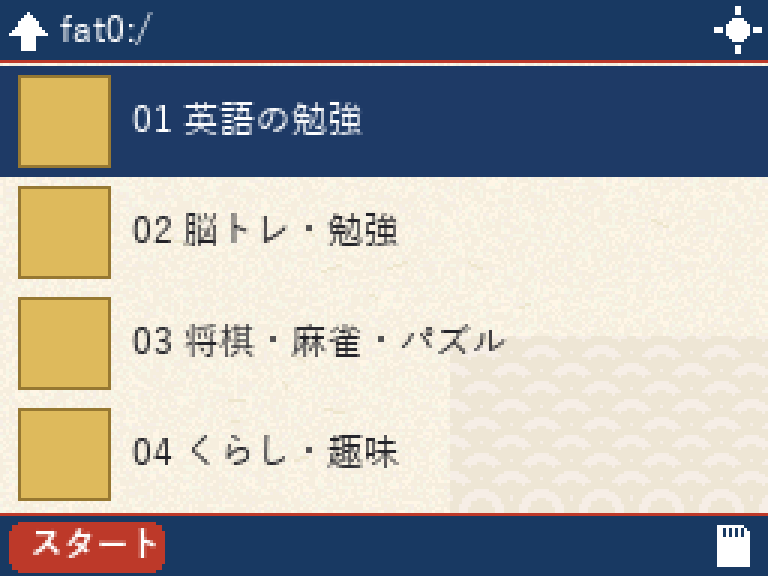
Design choices
| Choice | Why |
|---|---|
| Big categories in Japanese | Easy to understand at a glance, no tiny file names. |
Numbered folders 01–10 | Always in the same order, so muscle memory works. |
| English learning first | The main reason for this card is learning English. |
| Cover art for every game | Easier to recognise a game by its box than by its name. |
| Saves next to games | Copying a folder copies the progress too. |
The Washi theme is for the card's original Wood R4 menu. TWiLight Menu++ uses its own themes; change them in its settings.
07 · Setup files
Set up a new card
Back up first
Copy everything on the microSD card to your computer before changing anything, especially .sav files.
Step 1 · The microSD card
This card uses a 32 GB microSD formatted as FAT32. Many R4 cards don't work with bigger cards or exFAT. On Windows: right-click the card → Format… → File system FAT32.
Step 2 · Install TWiLight Menu++
Download
TWiLightMenu-Flashcard.7zfrom the official releases page.For Game Boy games, also get
AddOn-VirtualConsole-DSi-or-Flashcard.7z.Extract it with 7-Zip.
Copy the
_ndsfolder andBOOT.NDSto the main level of the card.Open the
Autobootfolder, find your card's folder, and copy its files to the main level.For this R4 clone it's
Ace3DS+(_DSMENU.DATand_DS_MENU.DAT). If the DS still opens the old menu, your card needs a different folder; the TWiLight wiki lists them.
Autoboot/Ace3DS+Step 3 · Add the setup files
Unzip
r4-setup-files.zip.Copy everything inside it to the main level of the card.
settings.initurns on two things: saves next to games (SAVE_LOCATION = 1) and GBA games through GBARunner2 (SHOW_GBA = 2).Put your own
bios.binin_gba, and your own games in the folders.Optional: run
tools/get_covers.pyfor cover art.
Optional · Use the Washi theme with Wood R4
If you keep the original Wood R4 menu instead of TWiLight, copy __rpg/ui/Washi to the card, then open __rpg/globalsettings.ini and change these two lines:
uiName = WashiviewMode = internal08 · When something's not right
Troubleshooting
Tap a problem to see what to check, easiest fixes first.
The DS opens the old R4 menu, not TWiLight
- Check that
_DSMENU.DATand_DS_MENU.DATfrom TWiLight'sAutobootfolder are on the main level of the card. - Your R4 may be a different clone. Try another autoboot folder from the TWiLight wiki list.
- Keep a copy of the card's original menu files so you can go back.
A GBA game opens a file list instead of starting
- Move the game to a folder with English letters only, for example
08 GAME BOY/GBA. - Check
_gba/bios.binis there and is exactly 16 KB.
My progress is gone
- Check the
.savis in the same folder as the game, with the same name. - If you moved the game, move its
.savtoo.
A game has no cover
- Run
get_covers.pyagain. Some games just don't have a cover on GameTDB. - You can add your own: a 128 × 115 PNG named after the game's 4-letter code.
A DS game freezes or shows glitches
- Try another copy of the game. Bad copies are the most common cause.
- Update TWiLight Menu++; new nds-bootstrap versions fix many games.
The DS says “Can't run” or shows a white screen
- Take out the microSD card and put it back firmly in the R4.
- Check the card is FAT32 and not bigger than 32 GB.
09 · Sources
Official project links
Everything used here is free. Always download from these official pages.
- TWiLight Menu++github.com/DS-Homebrew/TWiLightMenuThe game menu
- TWiLight Menu++ releasesgithub.com/DS-Homebrew/TWiLightMenu/releases/latest
- TWiLight Menu++ wikiwiki.ds-homebrew.com/twilightmenu/Install steps and the list of autoboot files per card
- nds-bootstrapgithub.com/DS-Homebrew/nds-bootstrapRuns DS games (included with TWiLight)
- GBARunner2github.com/Gericom/GBARunner2Runs GBA games (included with TWiLight)
- GameTDBwww.gametdb.com/DS/Where the cover script gets its covers
- Pythonwww.python.org/downloads/Needed only for the cover script
- 7-Zipwww.7-zip.org/Opens .7z files on Windows